
"Your business should drive your staffing, not the other way around."
Labor Plans, or Standards, should be considered "a recipe for how to staff every position in a hotel". They are staffing guidelines used to maximize labor efficiency while not compromising financial goals or service levels. All Labor Standards include one of more key Labor Standard components, such as job positions at the hotel and business drivers associated with the position. Labor Plans are the key to achieving the goal of getting every front line manager making the right decisions about labor costs.
How to Navigate through Labor Plans
The Labor Plans tool provides access to create and edit Labor Standards, compare Labor Standards, calculate Annual Standards Cost, manage Extra Plan Hours, and access the Budgeter tool through four sub-navigational menus. Please note, some access to these pages may be limited due to user permissions.
Edit Labor Standards
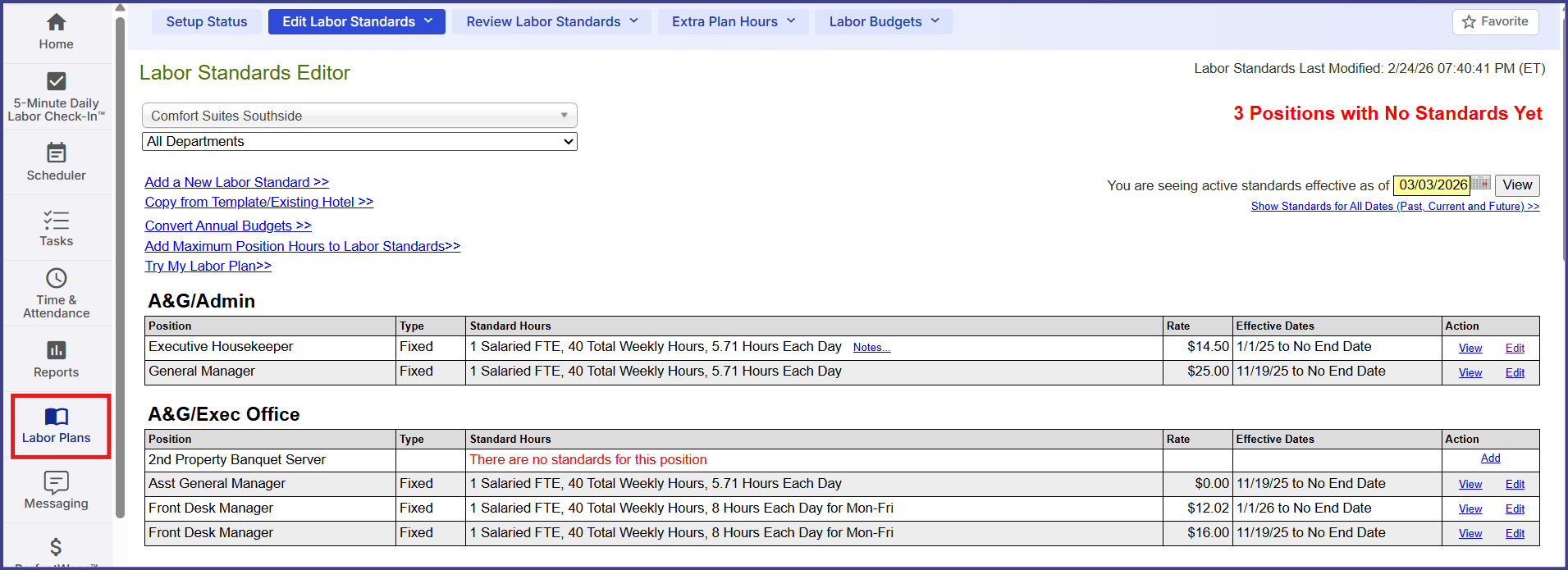
- The Labor Standards Editor contains a listing of all Standards created for the selected hotel. Within this page, users can gain access to add, edit, copy, or delete Labor Standards.
-
Build Labor Standards allows a user direct access to Labor Standard creation through three options:
- Copy from Template/Existing Hotel
- Convert Annual Budgets
- Add Manually by Position
- The Labor Standards Needing Attention page lists any positions that the system has identified as possibly problematic due to their setup. It will list Positions with No Standards, Positions with Labor Standards but No Actual Punched Data for the Last 7 Days, and Labor Standards Missing A Standard Pay Rate.
- In Quick Edit Standard Pay Rates users can quickly update the Standard Rates for multiple Labor standards at one time.
- Quick Edit Start Dates allows users to quickly update the Start Dates for multiple Labor Standards in one step.
- Quick Edit End Dates allows users to quickly update the End Dates for multiple Labor Standards in one step.
-
Copy ProfitSword Labor Standards gives you the ability to copy labor plans by hotel, position and month from the hotel’s budget in ProfitSword.
- For instructions on how to copy labor standards from ProfitSword, please review the following Article: ProfitSword > Hotel Effectiveness Labor Plan Copy
Review Labor Standards
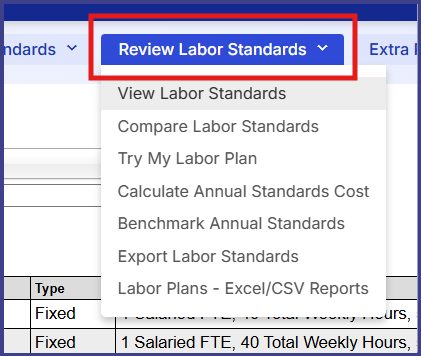
- The View Labor Standards screen provides a listing of all Standards created for the selected hotel. It also allows a user to View or Edit any of the Standards.
- Compare Labor Standards gives users access to compare Labor Standard setups based on position across multiple hotels. Users can only compare hotels whose Standards they have permission to view.
- Calculate Annual Standards Cost is a tool where a user can calculate how much existing Labor Standards will cost based on some basic revenue assumptions.
- The Benchmark Annual Standards page works in conjunction with the Calculate Annual Standards Cost tool. This page compares key profitability metrics for the selected hotel's Standards to Industry Benchmark Ranges. These ranges are based on labor data that is collected by Hotel Effectiveness across many segments of the industry. No data will appear in this page if the hotel has not previously utilized the Standards Cost tool mentioned above.
- Export Labor Standards provides access to export Labor Standard details into a CSV file.
Extra Plan Hours
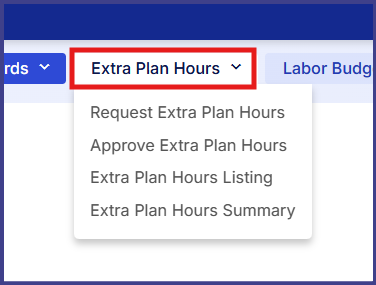
- Request Extra Plan Hours allows users to request extra plan hours to cover for exceptional situations.
- In Approve Extra Plan Hours managers can approve requested Extra Plan Hours. This feature is permission-based.
- Extra Plan Hours Listing is a report that lists Extra Plan Hour requests individually by date, position, status, and any additional notes.
- The Extra Plan Hours Summary report provides a hotel view of the total hours requested per status across a given time frame.
Budgeter
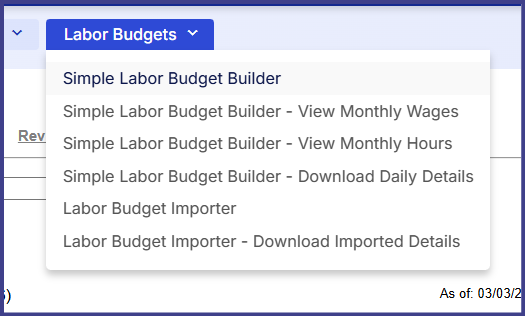
- Simple Labor Budget Builder is the home page for our Budgeter tool which produces a detailed annual payroll budget using existing Labor Plan Standards and revenue budget assumptions.
- Simple Labor Budget Builder - View Monthly Wages report shows budgeted hours for every position by month.
- Simple Labor Budget Builder - Download Daily Details provides access to export a CSV file with daily details of your monthly budget per position. Labor Details Data, Rooms Sold/Revenue Data, Additional Data (F&B Data), and Housekeeping Data can be exported.
Labor Standards Editor
Steps to Access the Labor Standards Editor:
- Select 'Labor Plans' in the left navigation menu.
- Review the list of accessible hotels.
- Click 'View/Edit' next to the desired hotel. This will take you to the Labor Standards Editor Page.
Labor Standards Editor Page:
A good Labor Plan is a ‘recipe’ for how to staff hotels.
The Labor Standards Editor provides the ability to organize labor standards for every position in the hotel within a single Labor Plan. This set of standards is used to analyze past performance and to schedule staff at the hotel.
The landing page for this tool provides a listing of all positions created within the selected hotel and any standards applied. This page is searchable based upon two conditions – the Department location of the position and the date range the standard is in effect.
The Department dropdown Is located in the top left corner of the screen and will change the view to show only positions specific to the department selected.
The default view will show standards that are active for the current day. To change this date range, there are two options: the date selection box and a link to ‘Show Standards for All Dates (Past, Current, and Future)’. The ‘Show Standards’ link will adapt the listing to provide every standard created regardless of date range. The date selection box will allow a user to decide which standards will appear based on a single date they were active (Note: please remember to click the ‘View’ button next to the date selection to update the page for this option).
Above the Standards listing, there are three links which allow a user to create new standards – Add A New Labor Standard, Copy from A Template/Existing Hotel, and Convert Annual Budgets. These three options are covered more in depth later in this user guide.
For a more precise view of a specific position's Labor Standard(s), select the 'View' option on one of the standards applied to the position.
'View' Labor Standard Page:
The 'View' option will provide a summary of the labor standard(s) for the selected position. From here, if you have appropriate permissions, you can Edit or Delete a specific labor standard. From this page, a user can search standards for the position based on a given date, using the same date selection box seen on the Labor Standard Editor page. The page also allows access to create new standards for the position or update the effective dates for multiple standards.
Editing the Labor Plan:
By selecting the 'Edit' option, a user can update details about the selected standard. This is a permission that not many managers have, so those that do are vital to having current, relevant standards and keeping them up-to-date. Follow the steps below to View/Edit the labor standards for a hotel.
Editing/Adding Labor Standards is a 4 step process. These steps are listed below and are described in detail in the "Adding Labor Standards Manually by Positions" section of this user guide.
- Step 1: Set the Standard Hours
- Step 2: Set the Standard Rate
- Step 3: Set the Effective Dates
- Step 4: Add Labor Plan Notes (Optional)
Build Labor Standards
Having a relevant, useful Labor Plan is the key to measuring performance in Hotel Effectiveness. When building standards, users can copy standards from pre-existing templates, copy from other hotels within their account, convert annual budgets for salaried, CPOR-, and MPR-based roles, or manually create plans for each position in the hotel.
After accessing the "Labor Plan" tab, hover over 'Edit Labor Standards' in the blue menu and select "Build Labor Standards".
Three options are presented for building Labor Standards. A high level description of each is listed below. More detailed information is presented later in this guide.
Copy from Templates/Existing Hotel
- Provides the ability to copy plans from either templates or an existing hotel.
- Templates are typically used by new Hotel Effectiveness clients.
- For existing clients, the option to copy existing labor plans from existing hotels is also available.
Convert Annual Budgets
- Provides the ability to quickly input salaried roles and CPOR and MPR details for each position.
- This is typically used by new Hotel Effectiveness clients
Add manually by Positions
- This option provides the ability to manually add/edit the plan for any single position at a time.
- This is typically used by existing Hotel Effectiveness clients
Copying Labor Standards from Templates/Existing Hotels
After electing to copy Labor Standards into the new hotel, choose an industry template OR the standards currently in place at one of the other active hotels available to the user.
NOTE: Please consider each of these options carefully as there is no 'undo' button.
Copying from Industry Templates:
These templates are based on organizational structures from hotels that currently use Hotel Effectiveness.
Copying from an Existing Hotel:
If you elect to copy from an Existing Hotel, you will be able to choose from which of your active properties you would like to copy.
The following optional settings will be available:
- Copy Standards for All Dates (Past, Current and Future). If unchecked, only the current and future standards will be copied.
- Copy the Pay Rates from the Source hotel. If unchecked, all standard pay rates will be set to $0.
- Only copy standards for positions which have already been added to this hotel. No new positions will be added to this hotel. If unchecked, you will copy all active positions from the source hotel.
- Copy the Payroll Codes and Mapping for any new positions. If unchecked, any new positions will have empty Pay Code Mappings.
When copying standards to a new hotel, select 'Preview Now' at the bottom of the page once ready.
Copying to A Hotel with Existing Standards:
The Copy feature is intended for use with new hotels being set up for the first time. The option to copy standards/positions onto a hotel with already active standards is also possible; however, it should be completed carefully. The system will display a warning when copied standards might create duplicates or cause overlapping plan entries.
For example, if the current hotel already has a fixed standard created for 7 hours/day for Breakfast Attendant and if a standard is copied from another hotel that allocates 5-8 hours/day for Breakfast Attendant depending on occupancy, the hotel will get duplicate hours for that position (7 fixed hours plus 5-8 hours depending on occupancy).
The system employs a red warning label to flag when this error may occur. Within the label, an option to end date existing standards is provided. That way, no standards will have a chance to overlap.
There are three options that can be selected:
Yes- This option will end the existing labor standards based on end dated in the target hotel by default.
Yes, but don’t end date labor standards for any positions that exists in the Target hotel but not in the Source Hotel - This option gives the user the ability to keep any labor standards for a position the target hotel has but is not present in the Source hotel.
No- This option will not end the existing labor standards.
Select 'Preview Now' at the bottom of the page to proceed.
Preview Copied Standards:
The system will display all requested changes before actually copying standards into the hotel.
The Copy Labor Standards Preview page will display the following sections when applicable:
- New Labor Standards - These will be added for each position.
**Please note, if a Labor Standards is checked and it comes with a new Business Driver or Clean type that particular driver or clean type will also be auto checked and disabled not allowing users to make edits. If that Labor Standards gets unchecked (don’t copy over) the driver and clean type will then get enabled giving user the option to keep or remove.**
- New Positions - These will be added to the hotel's Position Setup and Labor Standards will also be applied.
- New Business Drivers - These will be added and collected in Night Audit Entry.
- New Clean Types - These will be added and collected in Night Audit Entry.
If you choose not to copy over a Labor standard you will still have the option to copy just the Business Driver or Clean type. You will also the option to remove Business Driver and Clean type by selecting the checkboxes which will give the you the option to keep or remove them from the target hotel.
- Updated Clean Types - These will no longer be collected in Night Audit Entry. (The system will automatically add an End Date of the previous day so standards do not overlap.)
- Existing Standards - These standards will be updated with a new End Date to prevent overlapping.
Once ready, select the orange 'Yes, Copy the Labor Standards' button at the bottom of the page.
Lastly, verify that the copy worked as intended and make any updates as needed (like wage changes) back on the View Labor Standards page.
Converting Annual Budgets
When converting from Annual Budgets, the system requires a four step process to build out standards that do not currently exist.
Step 1: 'Enter Fixed Salaried Position Budgets' allows the user to quickly identify and build standards for fixed salaried roles.
Step 2: 'Enter Housekeeping Minutes per Room (MPR) Budgets' allows the user to input the overall minutes per room (MPR) goals for 3 standard room clean types (Stayover, Checkout, and Deep Clean).
Step 3: 'Enter Cost per Occupied Room (CPOR) Budgets' allows the user to easily build standards for roles that are based on cost per occupied room (CPOR). The system requires input of the full year budget for Rooms Sold, budget for the position, and the average wage for each position. Using this data, the system calculates the standards for the position.
Step 4: 'Add Remaining Standards by Position' allows the user to manually input all other standards for each remaining position.
When setting up a new hotel or updating an existing one, going through these four easy steps will allow the user to quickly establish standards for every position. While it is recommended to complete or, at least, review all four steps, each step is independent and they may not all be necessary to build out a hotel's full Labor Plan.
Adding Labor Standards Manually by Position
There are two ways to access the manual creation of Labor Standards: through the 'Build Labor Standards' sub-navigation under 'Edit Labor Standards' and through the 'Add a New Labor Standard' link on the Labor Standards Editor page.
Manual creation encompasses a four-step process:
Step 1: Set the Standard Hours
Step 2: Set the Standard Rate
Step 3: Set the Effective Dates
Step 4: Add Labor Plan Notes (Optional)
To begin, select the position for which you're looking to build a standard.
Step 1: Set the Standard Hours
The first component in creating a positional standard is to determine whether the position requires fixed or variable scheduling hours.
Fixed positions are positions that must be scheduled regardless of business volume. They represent the minimum amount of labor required to operate a property regardless of the volume of business. Some positions that are typically fixed are management staff and Night Auditors.
Variable positions are filled in relation to changes in business volume. As more guests stay at a hotel or dine at the hotel's restaurant, additional staff is required to fulfill their service needs. Most positions require variable scheduling as they're forced to react to the demands of the hotel.
The next factors in setting the standard's hours will change based on which positional hour structure is selected.
For Fixed positions, the system will want to know whether the employees who fill the position are Salaried or Hourly employees.
For Fixed Salaried positions, input the number of Full Time Equivalent (FTE) employees that are needed to fill the responsibilities of the role. For each FTE entered, Hotel Effectiveness will build 40 hours per week into the standard plan. For example, if three FTEs are entered, the standard plan will calculate 120 hours per week for the position. After entering the number of FTEs, the product allows a selection on how these standards will build daily throughout the week: either 5.71 hours every day per FTE or 8 hours per day, Monday through Friday, per FTE. The first option (5.71 hours every day) is the most commonly chosen item as it will allot the salaried hours across the weekly plan rather than just Monday - Friday. While this option may not directly represent how the employees are working from day to day, it helps to balance their labor through the weekend.
For Fixed Hourly positions, enter the number of Daily Standard Hours needed to cover the position. The plan will multiply these hours by 7 (days of the week) to create a weekly plan for the position. The system also provides an option to customize Daily Standard Hours by days of the week. Building out Daily Standard Hours this way allows for more customization within the weekly plan - perhaps the hotel is busier on the weekends and needs more fixed coverage than on the slower days of the week.
For Variable positions, the first factor in building out plan hours allows for the designation of what variable should drive the standard. The dropdown list provides access to the hotel's Business Drivers. Business Drivers capture distinct revenue details used for calculating standard plans. They act as multipliers for the positional hours within the standard's plan. Most of the business drivers shown in the dropdown are customizable for each property, so the options seen here are likely different from other hotels. Read about setting up custom Business Drivers in our Knowledge Base. This list also provides some system-generated pre-built Business Drivers based on industry standards.
Select the Business Driver to base the standards on for this position. Additional fields will appear specific to the Business Driver chosen. Enter information requested to proceed to Step 2.
Step 2: Set the Standard Rate
Applying a Standard Rate to the position equips the standard with a value used to calculate the Plan Wage. The Plan Wage appears in reporting throughout the Hotel Effectiveness product. In addition, setting the standard wage affects plans that take wage calculations into account, like "wages as % of revenue".
A budgeted wage can be entered for the position or the system can use a Current Average Wage based on all employee hours and wages for the position over the past two weeks. This Average Wage is based on actual data from your hotel across all earning codes not excluded from labor management. If no punches are in the system yet, the wage will be $0.00.
The Current Average Wage option is also static from the point of creation. Thus, the wage will always reflect the Current Average Wage that was present when the standard was created, it does not update automatically based on new wages over time. To update this wage, a user would need to manually select this option again.
Step 3: Set the Effective Dates
Effective Dates address when the standard being created is in effect. A large majority of standards will be built with an effective date of the day they're being built. It is also a best practice to build most standards without an End Date - so that they require less upkeep from year to year.
There may be times when a position requires different plan standards based on the time of year. This often happens at resort properties where recreation positions (lifeguards, pool servers/bartenders) are required to work less during the offseason.
If a hotel has positions meeting these needs, the user can start and term the plans, as needed. When doing this though, it's very important not to delete old plan record(s) for this position and override them. Doing this will cause the system to go back and recalculate all of the plan data and overwrite any past records. Therefore, when creating multiple plans for a position based on date ranges, it is best to add a completely new plan record for each date range of that position.
When entering a term date for one plan, be sure to start another plan beginning on the next day.
Step 4: Add Labor Plan Notes (Optional)
Managers can add Labor Plan Notes inside of Plan Manager. Notes are helpful to add context to specific plans.
Managers should use this feature to communicate the context of why certain labor standards are in place, especially if the person inputting the standards may not be the same person reviewing them for the next year.
Only managers who can edit plans will be able to add/edit notes, but anyone with permission to view plans will be able to see them.
Standards Needing Attention
This page acts as a portal to review the Labor Standards setup. When any of the following instances occur, they will appear on the page divided into three sections:
- Positions with No Standards Yet lists all of the positions within the Organizational Structure (Division/Department Setup) that do not have Standards built yet. Ideally, all positions should have Standards to provide balance within a Labor Plan. When positions are created without Standards, there is a risk that actual data for those positions could come across and add to your total labor statistics. When this occurs, the actual labor will not balance with Labor Plan data, possibly skewing the Win-Loss concept in a negative manner.
- Positions with Labor Standards but No Actual Punched Data for the Last 7 Days will populate when a position has a Labor Standard applied but has no actual data coming across from the Time & Attendance provider. This instance causes plan data to be created without reciprocal actual labor data. When this occurs, the Labor Plan data will not balance with the actual labor, possibly skewing the Win-Loss concept in a "false positive" manner. A "false positive" will make the labor data seem more favorable than it actually is.
- Labor Standards Missing A Standard Pay Rate identifies when a Labor Standard is created without a planned wage. When a Standard is built without a standard rate, wage-based reporting will be skewed. For each Labor Standard, a standard "budgeted" wage can be applied or the system will allow the current average wage for the position (at the time of the Standard being created) to be applied.
Quick Edit Standard Pay Rates
The Quick Edit option allow for mass edits to Labor Standard Pay Rates within a single screen rather than having to access each standard individually.
This rate can be a manually-entered Standard Pay Rate applied from a budgeted number or the Current Average Wage for the position can be applied. The Current Average Wage is calculated based on all employees' hours and wages for the past few weeks. If you don't have punches in the system yet, this will appear as $0.00.
If edits are made to the Standard Rate, they will need to be saved at the bottom of the screen.
Please Note: Changes applied to Labor Standards will updated all historical data between the effective dates. If you want to preserve old standard rates, you must copy each standard to a new effective date and then update the rate.
Quick Edit Start/End Dates
The Quick Edit option allow for mass edits to Labor Standard Start/End Dates within a single screen rather than having to access each standard individually.
The new Start/End Date will need to be entered in the date field at the top of the screen. Then, each Standard that needs to have the new date applied should be checked off along the left-most column in the table below.
If edits are made to the Start/End Date, they will need to be saved at the bottom of the screen.
Please Note: The standard view of this page will show only the Active standards by date. To view any past or future Standards, the date at the top right of the screen will need to be updated (click 'View' to update the screen). Or, the blue link 'Show Standards for All Dates (Past, Current, and Future)' can be selected as well.
Compare Labor Standards
For Users with single hotel access, this page provides a view of Labor Standards on an individual position basis. Sometimes this is a better way to review a Labor Standard's setup without having to navigate through the full list of standards on the Labor Standards Editor page.
For users with access to multiple hotels, this page will provide, not only the individual position view mentioned above, but also the ability to view Labor Standards across their accessible hotels. This view should allow users to ensure consistency among Standards across multiple hotels where necessary.
Please Note: The standard view of this page will show only the Active standards by date. To view any past or future Standards, the date at the top right of the screen will need to be updated (click 'View' to update the screen). Or, the blue link 'Show Standards for All Dates (Past, Current, and Future)' can be selected as well.
Calculate Annual Standards Cost
This tool allows the user to calculate how much Labor Standards will cost based on some basic revenue assumptions.
To use this tool, enter the Full Year Assumptions for Number of Rooms in the Hotel, Amount of ADR, Occupancy %, Restaurant Food Revenue, Out of Order Rooms, Meeting Room Revenue, Departures, and Banquet Revenue.
Click on the 'Calculate Full Year Costs' to generate cost assumptions. These costs will appear in Step 3: Review Full Year Costs. This report is paginated. If there are many positions within the hotel, the results may extend to multiple pages.
Once you've completed these steps, the fields within 'Benchmark Annual Standards' will populate.
Benchmark Annual Standards
Please Note: The 'Calculate Annual Standards Cost' tool must be filled out to use this feature.
The Benchmark Standards Tool provides the ability to compare your total labor costs against comparable hotels based on the industry benchmark segment assigned to your hotel.
- Login to the Hotel Effectiveness
- Select 'Labor Plans' from the left navigation menu
- Hover over 'Review Labor Standards' on the blue bar
- Select 'Benchmark Annual Standards'
These benchmarks have been established based on a growing industry base of current Hotel Effectiveness customers.
If the Comparison Result is yellow, the metric is under the industry benchmark range. If green, the metric is inside the range. Red Comparison Results mark metrics that are over the range.
If you'd like to change your benchmark segment, please contact our Support team.
Note: Permissions are required to use the Benchmark Annual Standards tool. Contact your account administrator for access.
Export Labor Standards
With Export Labor Standards, users can download all Labor Standards in a single CSV/Excel file for all of their accessible hotels. This makes it easy to compare plans across hotels and see audit details, such as "last updated" and "by which user".
Extra Plan Hours
The Hotel Effectiveness tools place a strong emphasis on winning by staying within the correct number of labor hours. However, some days, it's just not possible to 'win' because you have employees working on special projects, training, or doing other work that is not in your normal labor plan.
Extra Plan Hours allows managers to request additional plan hours for special projects or training (this can be done in advance or retroactively). These hours are requested by each manager and then approved by a senior manager. The requesting manager enters a quick note about why the hours are needed, what dates the hours are needed, and how many hours are requested. Once a senior manager approves the hours, they flow through into the daily plan hours like any other plan hours.
The Extra Plan Hours feature is permission based. Users can be given access to request and/or approve hours on an individual basis.
Initiating an Extra Plan Hours Request:
- Select "Labor Plans" from the left navigation menu
- Click 'Request Extra Plan Hours" under the Extra Plan Hours menu on the blue bar
- Click 'Add Request' on the day(s) you want to request extra hours - you must do a separate request for each day
- Select the position, enter the requested hours, and record any notes about the request
Example – Maintenance Engineer, 24 hours, (3 people) for turning mattresses and installing new TVs - The request is then placed in a queue and senior managers will get an alert saying requests are pending
- Once approved, the hours are immediately added to your labor plan hours for the days requested
Approving An Extra Plan Hours Request:
Note: Typically only senior managers can approve additional plan hours.
- Select "Labor Plans" in the left navigation menu
- Hover over "Extra Plan Hours" in the blue bar and select "Approve Extra Plan Hours" from the dropdown list (you will only have this option if your security is set to be able to approve extra plan hours)
- Click 'Approve' or 'Reject' on the additional plan hours
Setting Up an Extra Plan Hours Email Alert:
We also have an optional email alert available for senior managers who want to be notified when their hotels have requested extra plan hours. Without this email alert, managers will not be notified when new requests are submitted.
If you want to be subscribed to that for your hotels, simply navigate to 'My Email Alerts' in the 'Username Menu' and sign up for " Pending Approvals for Extra Plan Hours."
If you do not have permission to Approve Extra Plan Hours, you will not be able to sign up for this alert.
Extra Plan Hours Reports:
There are two reports available for Extra Plan Hours: the Extra Plan Hours Listing and Extra Plan Hours Summary. Both are accessible from the Extra Plan Hours dropdown menu.
- Extra Plan Hours Listing - This report will provide a list of all Extra Plan Hour requests. It is searchable by hotel, date, and status. Each line contains the request's date, position for which hours were requested, status, total requested hours, notes, who approved or rejected the request, and when the request was approved or rejected.
- Extra Plan Hours Summary - This report lists our all Extra Plan Hour requests by hours. It is searchable by hotel and date range (this range can not exceed 45 days at a time).
Budgeter
The Hotel Effectiveness Budgeter produces a detailed annual payroll budget for hotels using existing labor plan standards and revenue budget assumptions.
Budgeter can be found under Labor Plans, located in the left navigation menu. Once in Labor Plans, you will see Budgeter in the blue navigation bar at the top of the page. If you do not see Budgeter, contact your account administrator to add this option.
There are four steps to building a Labor Budget:
Step 1: Import Revenue Budgets
- Click on the "Add New Budget Version" link
- Enter the Budget Version Name (e.g. Budget 2019)
- Enter the start and end dates for the budget
- Select the budget type (Working or Final)
- Click on "Edit Historical Trend Date Range" (Optional). This is only for hotels with a partial current year of data in Hotel Effectiveness.
- Enter notes (optional)
- Click "Save and Import Budgets"
- Follow instructions on the Import Revenue Budget page to import the budget
- Click Import Budgets
Notes:
- An unlimited number of budget versions can be created.
- The final output includes monthly budgets by position as well per occupied room metrics and payroll as a % of revenue.
- Operational assumptions should be organized by month in an excel spreadsheet before getting started. This includes Rooms Sold, Rooms Available, Rooms Revenue, and any other variables in the labor plan.
- The data to import must be in 12 consecutive columns (January - December) with no other columns in between each month.
Step 2: Review Labor Budgets
- On the View Revenue Budgets page, verify the following:
- Every position is present from the labor plan which needs to be included in the budget
- The hours and standards are correct for every position
- The average wages match the budget
Note: It is highly likely edits will need to be made to the labor plan prior to creating a budget. Contact your account administrator to obtain access, if needed
Step 3: Build Labor Budgets
- Select a Revenue Budget Version to build
- Select "Build My Budget"
Step 4: View Monthly Wages Budget
- After clicking on "Build My Budget" in step 3, a confirmation page will appear indicating the budget has been built successfully.
- The completed budget will appear on the page as well
Budgeter Reports:
- View Monthly Hours Budget: Shows budgeted hours for every position by month
- Download Daily Details: Creates a CSV file with one line for every day of the year and position.
Comments
0 comments
Article is closed for comments.