
Applies to: Account Administrators, Hotel Administrators, All Managers/Supervisors
What is PerfectEngage?
How do you communicate with other managers and hotel employees aside from morning briefs and other meetings in the 21st century? Do you rely on the good ol' log book at the front desk or traditional memos on the employee bulletin boards? Although modern-day email is convenient, not every employee has a work email account. Besides, you probably prefer that your employees focus on working in their post, instead of constantly checking emails during their shift.
Hotel Effectiveness has just the right solution for you. PerfectEngage™ is specifically designed to help you streamline communications across all departments at your property or within a group of hotels.
There are two types of communications in PerfectEngage:
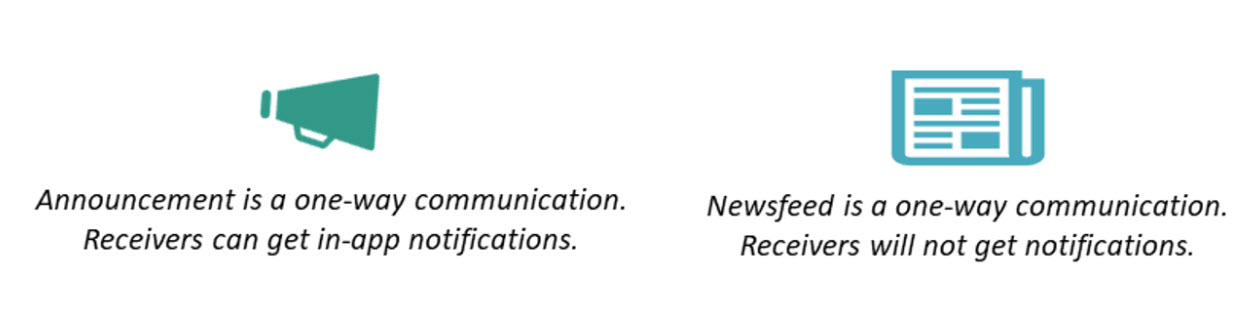
- Announcement is a one-way communication from management to managers and employees for time-sensitive matters that require immediate attention or timely actions from the recipients. Think of it as the traditional memos posted on the back-of-house bulletin boards in your hotel.
- Newsfeed is also a one-way communication from management to employees and other managers. Unlike Announcement, Newsfeed is intended for subjects that are less time sensitive and can be read at the recipient's own pace.
Announcement
- What is Announcement and sample uses
- Tracking Announcement read rates
- How do managers send and read Announcements
- How to archive Announcements
- Employee views in MyHotelTeam
- Announcement notifications

What is Announcement and Sample Uses
Think of Announcement as the traditional memos that your managers posted on the back-of-house bulletin boards in your hotel. Announcement is a one-way communication from management to employees and other managers for time-sensitive matters such as:
- An upcoming hotel inspection
- Water main shutdown for urgent plumbing repair
- Reminder for next company-wide town hall meeting
Tracking Announcement Read Rates
Since Announcements often require immediate attention or timely actions from the recipients, Hotel Admins and Account Admins have visibility into Announcements being sent and how many recipients have read them through the Announcement Read Rates report.
- Click on PerfectEngage in the left main menu in Hotel Effectiveness.
- Hover over Engagement Analytics in the top menu.
- Select Announcement Read Rates.
- Select the desired date range from the calendar dropdown menu (if needed).
- Click on the Download icon on the far right to export details of the Announcement.

How Do Managers Send and Read Announcements
Both corporate and hotel managers can make and read Announcements in the Hotel Effectiveness Mobile App or the Hotel Effectiveness Portal.
- Making Announcements in Hotel Effectiveness Mobile App

- Making Announcements in Hotel Effectiveness Portal
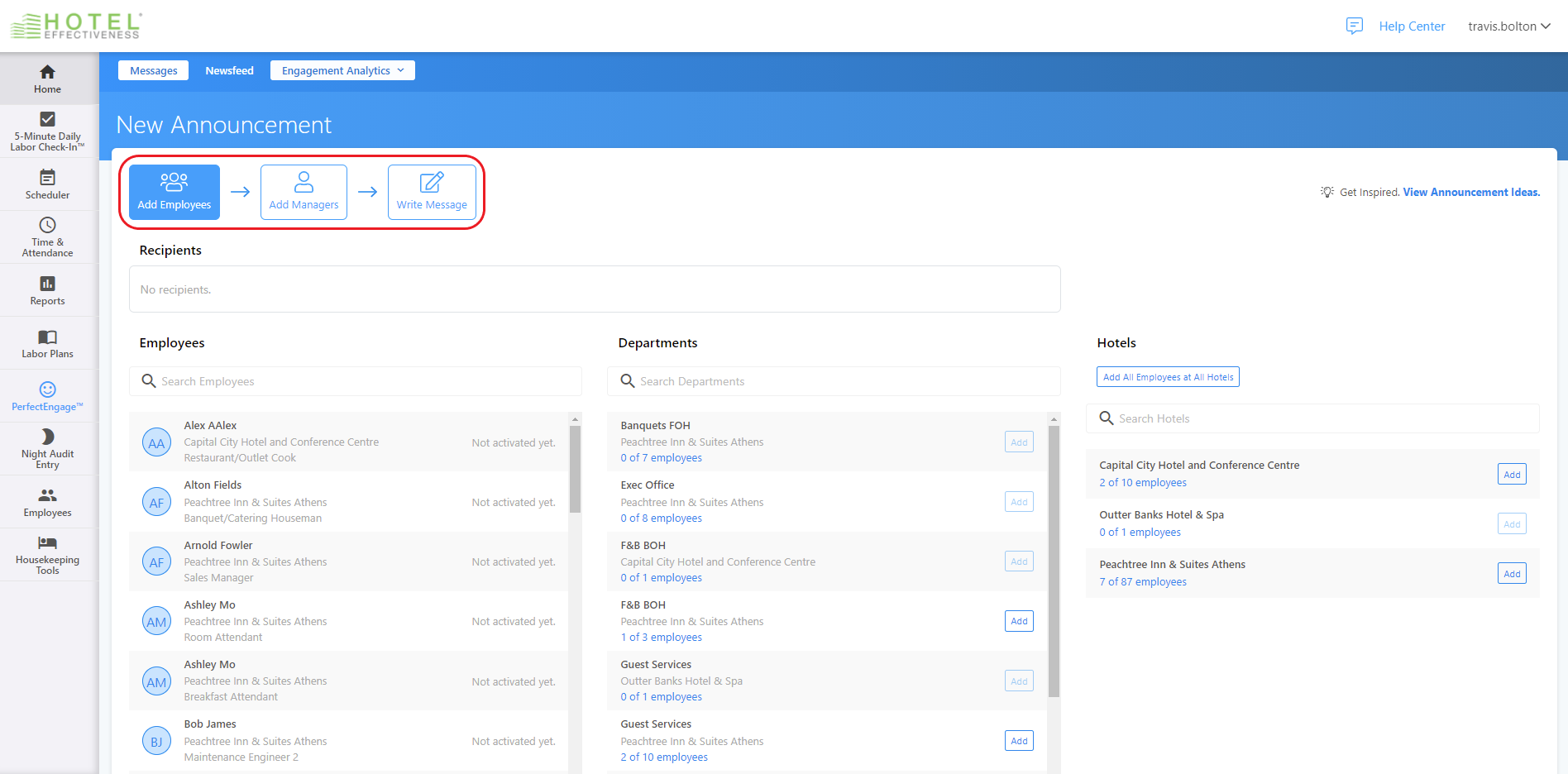
- Select Make Announcement on the Messages page.

- Follow the instructions on screen to send the Announcement.
Pro Tip
If you want to send an Announcement to all associates, including managers, remember to add the hotel in step 1 and add all managers in step 2 when you create the Announcement.
How to Archive Announcements
Managers can also archive Announcements that are out of date.
a. Archiving Announcements in Hotel Effectiveness Mobile App
- Select the menu icon on the top left.
- Select Messages.
- Open the Announcement that you want to archive.
- Hover over the three-dot menu on the top right corner.
- Select Archive Announcement.
- Select Archive Announcement again to confirm.
b. Archiving Announcements in Hotel Effectiveness Portal
- Click on PerfectEngage in the left main menu in Hotel Effectiveness.
- Open the Announcement that you want to archive.
- Hover over the three-dot menu on the top right corner.
- Select Archive Announcement.
Pro Tip
Once an Announcement is archived, it is only archived for the person performing the action. The Announcement will remain visible to all other recipients unless they choose to archive the Announcement themselves. You can always view your archived Announcements in Archive Messages.
Hotel Associate View in MyHotelTeam
Hotel associates can read Announcements in the MyHotelTeam Mobile App or by going to myhotelteam.com on a computer.

Announcement Notifications
Your managers and employees can opt in or out of getting push notifications and in-app alerts for Announcements in their mobile device settings, as well as in the app settings (i.e., Hotel Effectiveness App for managers and MyHotelTeam App for associates).
Newsfeed
- What is Newsfeed and sample uses
- Auto-generated Newsfeed for birthdays and work anniversaries
- How do managers send and read Newsfeed
- How to delete Newsfeed
- Employee views in MyHotelTeam

What Is Newsfeed and Sample Uses
Newsfeed is a one-way communication from management to associates. It's versatile and can be used to communicate or relay a variety of information. For example:
- Birthdays and work anniversaries (Celebrations)
- Owner group acquiring a new hotel (Corporate News)
- Hotel recognized for sponsoring charity drives; new job postings; hotel performance stats and goals (General News)
- Customer reviews on social media (Guest Mentions)
Unlike Announcement, Newsfeed is intended for communications that are less time sensitive and can be read at the recipient's own pace. Therefore, recipients don’t get push notifications or in-app alerts for Newsfeed.
Auto-Generated Newsfeed for Birthdays and Work Anniversaries
Auto-generated posts will appear in Newsfeed by default on employee birthdays and work anniversaries with the label Celebrations. Please be sure to verify if you have provided the birthdays and hire dates of all employees in Hotel Effectiveness.
- Select Employees in the left main menu in Hotel Effectiveness.
- Hover over Reports in the top menu.
- Select Team Roster.
- Select a hotel if you manage multiple properties.
- Check the box next to Show employee birthdates.
- Click on Generate CSV file.
- Open the CSV file and look at the columns for Hire Date and Birthday.
If any associates are missing the birthday or hire date, please enter the information as soon as possible.
- Select Employees in the left main menu in Hotel Effectiveness.
- Hover over Employee Manager in the top menu.
- Select Employee Explorer.
- Select the department in the dropdown menu (if needed).
- Locate the employee in the list and click on View/Edit in the far right.
- Missing Hire date - Click on Edit next to Employee Profile to enter the hire date and click Save Employee.
Missing Birthday - Click on Edit next to Additional Information to enter the birthday and click Save Employee.
Auto-generated birthday and work anniversary Newsfeed posts are turned on for all users by default. Your Account Administrator can disable this option in MyHotelTeam settings if you don’t want them to appear in Newsfeed for your hotel(s).
How Do Managers Send and Read Newsfeed
Both corporate and hotel managers can create new posts in the Hotel Effectiveness Mobile App or Portal. Managers can also use the Mobile App or Portal to read Newsfeed posts from other managers.
a. Creating Newsfeed Posts in Hotel Effectiveness Mobile App

Pro Tip
If you manage multiple properties, remember to choose a hotel from the property dropdown menu.
It's also a good practice to select an appropriate label for your Newsfeed Posts. The default label is General News; other options include Celebrations, Corporate News, and Guest Mentions.

b. Creating Newsfeed Posts in Hotel Effectiveness Portal
How to Delete Newsfeed Posts
Managers can also delete a post after it has been published in Newsfeed. Once a post is deleted, it can't be recovered.
a. Deleting Newsfeed Posts in Hotel Effectiveness Mobile App
- Select the menu icon on the top left corner.
- Select Newsfeed.
- Find the post that you want to delete.
- Hover over the three-dot menu on the top right within the post.
- Select Delete Post.
- Select Delete Post again to confirm.
b. Deleting Newsfeed Posts in Hotel Effectiveness Portal
- Click on PerfectEngage in the left main menu in Hotel Effectiveness.
- Select Newsfeed.
- Find the post that you want to delete.
- Hover over the three-dot menu on the top right within the post.
- Select Delete Post.
- Select Delete Post again to confirm.
Hotel Associates View in MyHotelTeam
Hotel associates will read the Newsfeed in the MyHotelTeam Mobile App or by going to myhotelteam.com on a computer.

Comments
0 comments
Article is closed for comments.